Views based on filters
In the panel to the left a number of pre-prepared filters has been added. Using these filters makes it easier to find the content to work with. An example of a view is Article Page witch shows only Article Pages.
Two special views are Start Page and Editor Handbook. The first shown only one item, the start page. The second shows the Handbook of the system.
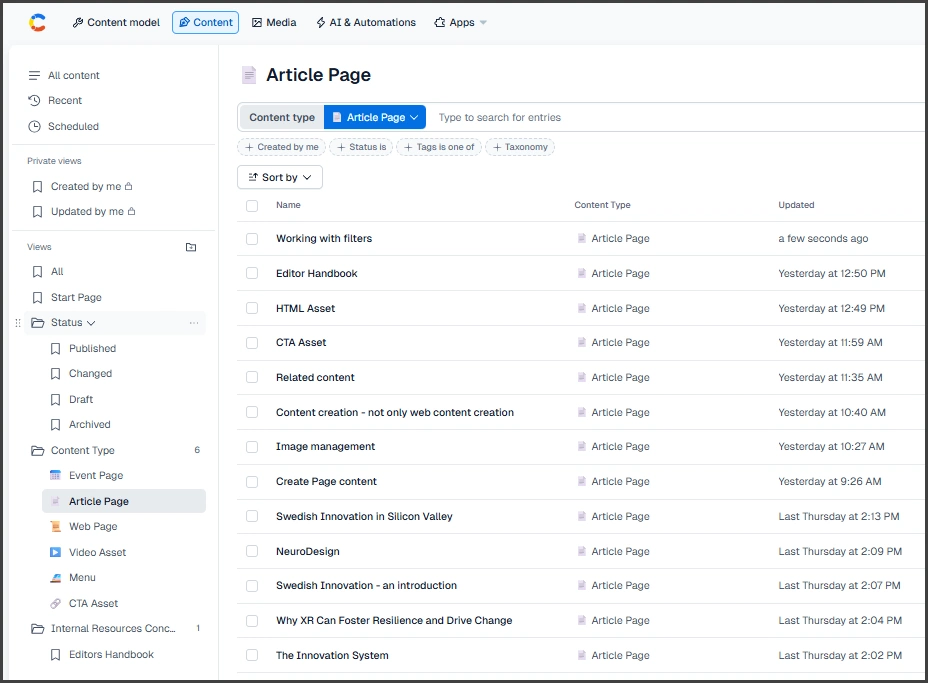
Filters are used to extract content and assets to work with.
Add views
It is possible to add private views or public views. Public views should be added only if it is sure that the view will help most of the editors. In all other cases it is recommended that a private view is created instead.
Private views can also be added temporarily to help during the work with a set of content in a campaign or similar.
To create a new view, set up the filter above the content list. Then use Create new view under the Views function.
It is also possible to organize views in folders by choosing the small folder-icon in the left panel.
Working with a filter
Often there is already a filter in the filter box above the content list. To remove all current filters set the cursor in the text field to the right of the filter and select Delete on the keyboard.
To add a new filter, choose one presented below the line or open the filter selector to the right in the input text box. Now configure the filter to select only the records to be displayed.
It is possible to add several filters at the same time. As an example it is possible to filter Article Pages, added by me and in the state Draft. This shows Article pages that you have started to create, hence in draft mode.