Media is a decoration
Media can be used to enhance the experience for a person consuming the text information. The general rule is that the information provided through an image should also be possible to get through the text. That applies only if the image has information critical to understand the concept of the page this image is placed on.
Work with images from imagebank.sweden.se
The main web site swedeninnovationx.se is placed under the umbrella sweden.se. Because of this it should follow the graphical guidelines connected to that cluster.
Images should preferably be selected from the site https://imagebank.sweden.se/.
Illustrations could be created using AI.
Working with images
Reuse or create new
Image assets can be added when a page needs a main image or an image as a decoration in the text. Images is either added or reused.
1. Filter to find existing images
The first thing to do is to try to reuse an existing image. Use filters to search for possible candidates. Filters can help to reduce the number of candidates. Below is a number of filter possibilities.
Filter by name - type part of the name
Filter by Type - use type under the Filter-button to find by type Image
Filer by me - find images created by you
Filter by Tag - find General images
Filter by Taxonomy - find images within a concept
2. Upload a new image in format wepb
If there are no existing image to fit the need a new one has to be added. Find an image or create one using AI.
Before uploading the image, convert it to the wepb-format to have maximum compression.
3. Set title and describe the image
When an image is uploaded the titel is set based on the image name. In normal cases the titel needs to be adjusted. The title should describe the image but not be to long. The title will be displayed on the main web page as the alternative text shown when the images can not be loaded or when a person uses a screen reader.
Do not name an image "Image 123", "Photo_2023-2-2344- (debug)" or something similar. The titel should in short tell what content is on the image.
The description is where the content is described in more detail. When an image is shown as an asset in a text the description is shown below the image. If the photographer is known, this information could also be added as part of the description.
4. Tag and set taxonomy
Before saving a new image add a tag and connect the image to a concept if a relevant concept exist.
Add images from imagebank.sweden.se
The standard format for images is webp. This is a highly compressing format suitable for web. Images from imagebank.sweden.se can be downloaded as jpg and needs to be converted.
The steps to do the image creation could be like this.
Select and download the image from imagebank.sweden.se
Open the app Paint.NET (the app can be downloaded through Företagsportalen)
Open the image in Paint.NET
Save the image with the same name in wepb-format
Create a new image asset in Contentful
Select the webp-image
Use the suggested name or rename the asset
Copy the description of the image from imagebank.sweden.se
Tag the image with the tag Media Imagebank Sweden
Connect the image to a Concept if applicable
Add screen images
Screen images are in some cases useful to display information from a web page or some app. To create a screen image these steps could be useful
Copy a part of the screen using Skärmklippverktyget
Open the app Paint.NET (the app can be downloaded through Företagsportalen)
Paste the content as a new image
Extend the area of the image 6px keeping the image centered. Opens for a fram of 3px.
Add a new layer and fill the layer with a grey color, the fram color
Move the Background up above the new layer
Save the image as a wepb image
Create an image asset in Contentful
Select the webp-image
Use the suggested name or rename the asset
Create a description of the image
Tag the image as Media General if it can be used on different pages or Media Specific if only to be used on a particular page
Connect the image to a Concept if applicable
Add illustrations created by AI
Illustrations can be used to enhance a page. Use an AI tool like Copilot to create the image. To the create the webp image, follow these steps.
Download the image from the AI Imgage generator
Open the app Paint.NET (the app can be downloaded through Företagsportalen)
Open the image in Paint.NET
Save the image with some name in wepb-format
Create a new image asset in Contentful
Select the webp-image
Use the suggested name or rename the asset
Create a description of the image
Tag the image as Media General if it can be used on different pages or Media Specific if only to be used on a particular page
Connect the image to a Concept if applicable
Metadata for an image asset
Image titel
The title of an image is also used as its alternative text for people with screen readers. Have a descriptive titel but keep it short. The content of the image will also be displayed as an image text. A more detailed description can be added there.
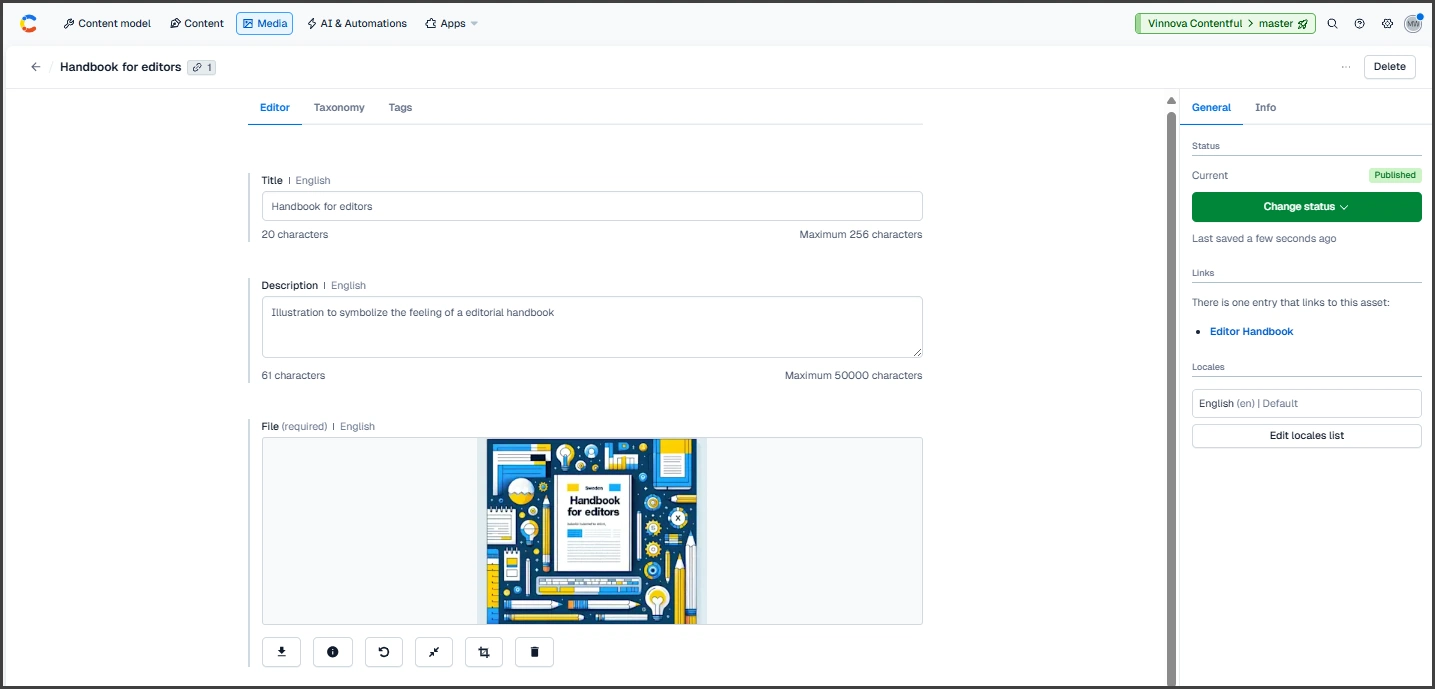
An eaxample from the Media screen in Contentful.
Description
All images should have an description. When the images is shown in a text on the main web page the description is shown as a image description under the image.
The description can describe what the image is showing. It can also contain information about the photographer.
The file
In normal case an image is uploaded from the local drive. It is however many possibilities to add image files. A Link, Web Search, Facebook, Instagram, Google Drive, Dropbox or Take an image with the camera.
The image should be in the format "webp". If the file needs to change format, this is easiest done by loading it into Paint.NET and saving the image in this format.
If the image should be used as Main image the preferred format is 1x1 or 3x8. A square or a wide image.
Tagging and taxonomy
To make it easier to find existing images all new images should be tagged.
Media Sample - images used only for testing
Media General - images that can be reused on different places
Media Specific - images created for a specific page
Media Imagebank Sweden - images downloaded from the site imagebank.sweden.se
In som cases an image could also be connects to a concept, a taxonomy. Images used when creating this handbook is connected to the concept Editor Handbook included in the Concept scheme Internal Resources.
Filtering can be used if all images are tagged and connected to a concept. Please try to keep the media repository updated.