Call to action - offer the visitor interesting reading
In many cases a user of a web page can start reading a page but not finish reading it. By adding a CTA Asset the reader gets a chance to continue reading on selected pages. In this case a link block with an image is the suggested way to present it all.
In some cases it is also a need to offer the user a possibility to fill in a form or do some other action. One can use a link but showing one or two buttons could instead be the best way to help the user.
The two shapes of CTA - block view or button view
Block view with images
As soon as an image is selected for one of the links the display on the main site will show the CTA as a ablock view. Even though a default image is shown if an image is missing it is a recommendation to always have an image for all blocks added.
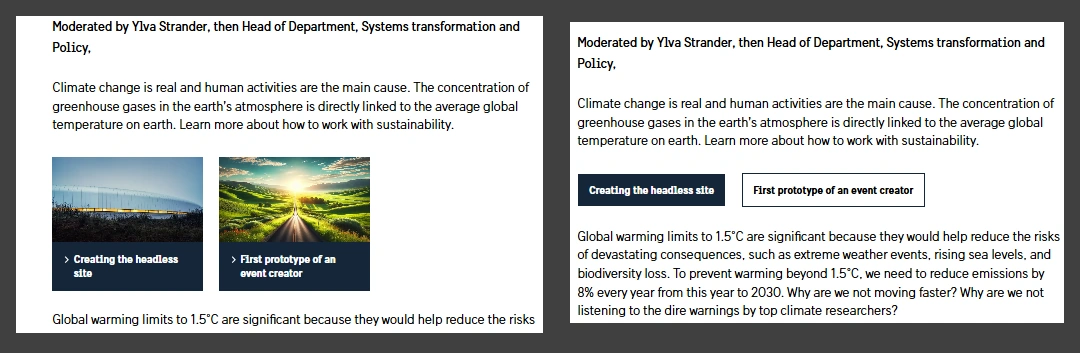
The image shows two ways to display CTA assets. As block images or as buttons.
Button view
If not image has been selected for any of the three links the view on the main site will be as buttons.
Meta data
Internal Name
The internal name is displayed inside the CMS. It should describe what purpose or content the CTA asset has.
Action Text 1, 2 and 3
The Text is shown a either a button text or a link text.
Action Link 1, 2 and 3
The Link should be internal, /, or external using the format https://www.site.se/page. The url is entered manually in either case. Remember to test the buttons or the blocks after content has been publish with an CTA-block.
Action Image 1, 2 and 3
Add or reuse images from the Media repository. It is recommended to add images to all links.
If the image is omitted the CTA Asset will be displayed as buttons.